
A liquidity heatmap draws the order book over time: every price is a row, every moment a column, and the colour says how much was waiting there — dark where little rested, red where the most did. The trades are drawn over it as bubbles, so you can watch price meet a wall and see whether it went through or turned away.
What is a liquidity heatmap?
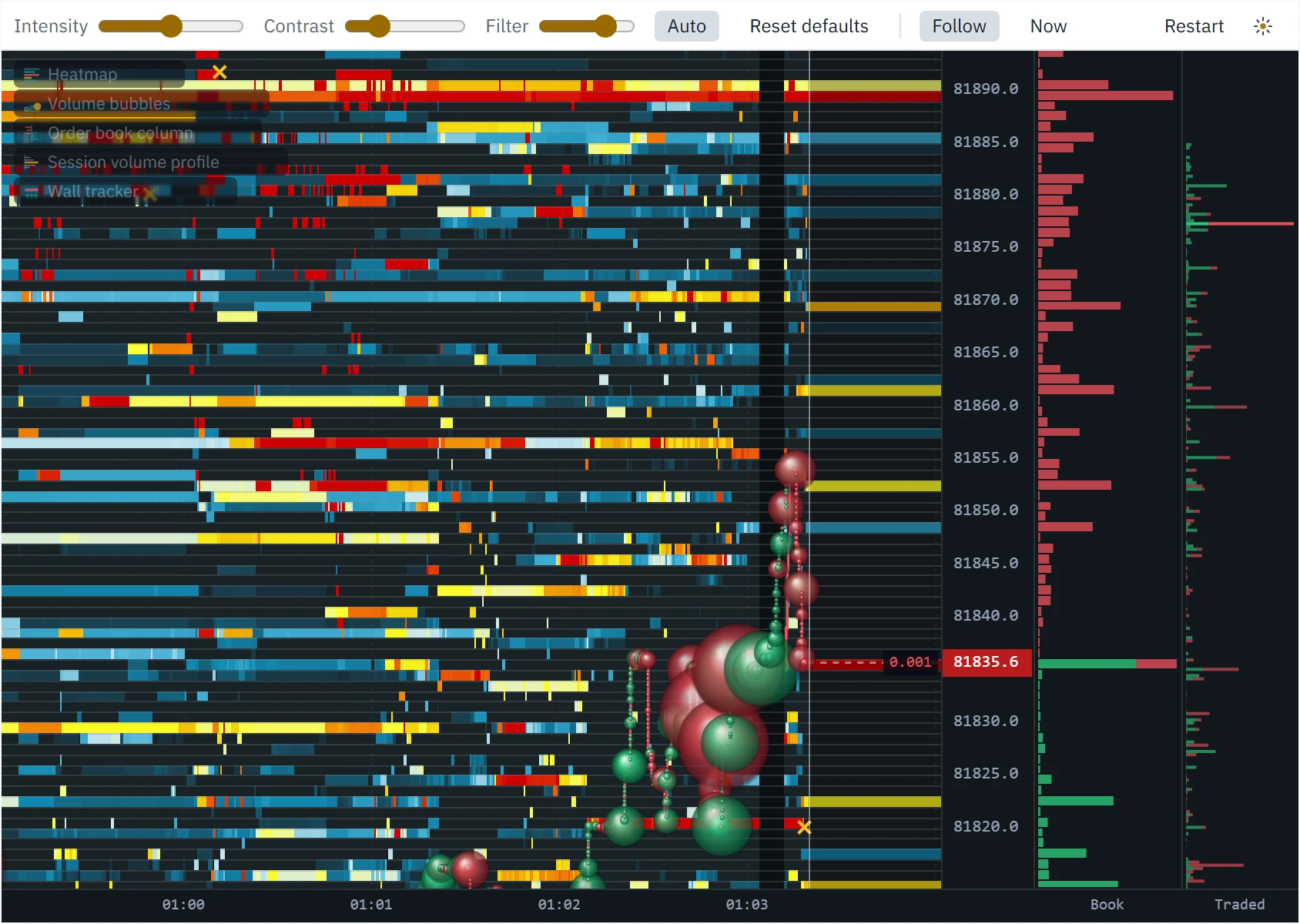
An exchange’s order book is a list of limit orders waiting to trade: bids below the market, offers above it, a size at every price. A DOM ladder shows that list as it is right now. A liquidity heatmap — also called an order book heatmap, a depth heatmap or, after the platform that made it famous, a Bookmap-style chart — keeps every version of it. Time runs left to right, price bottom to top, and each price is coloured by how much rested there at that moment.
The result is a picture of where liquidity sat and for how long. A large order that waited at one price for ten minutes is a bright horizontal line. Size that was placed and pulled again is a short flash. A range nobody quoted is a dark gap. Drawn over the book, each trade is a bubble at its price: green where buyers took the offer, red where sellers hit the bid, larger for more volume.
How Klustra builds it
Your browser opens the exchange’s own order book stream directly: one snapshot of the book, then a message for every price level that changes — every 100 ms on Binance. A Web Worker keeps the book from those messages, and the heatmap’s own worker records it: every 100 ms it stores the price rows that changed since the last look, and once a minute a full copy, so any moment can be drawn again exactly. Sizes are kept as the exchange sent them, never rounded or resampled, and nothing about the book passes through a Klustra server.
That recording is the heatmap. When you open it, it is blank, and it fills in as it records — the way Bookmap opens. There is no history to load: exchanges publish past trades, not past order books, so the only book a heatmap can show is one somebody recorded. Klustra records from the moment you open it until you close it, change the instrument or press Restart. A recording keeps up to two hours, and every heatmap on screen shares 96 MB of memory; on the Binance Bitcoin perpetual, the busiest book there is, that holds about an hour and fifty minutes. Quieter books keep the full two hours.
Rows, bands and the colour of a pixel
A row is one price on the exchange’s own grid — one tick, or a few ticks where a venue sends a very deep book. Zoomed out, a tick is thinner than a pixel, and a field of sub-pixel rows reads as noise, so neighbouring rows merge into bands at least five pixels tall, on round prices: ten-cent ticks become one-dollar bands on Bitcoin at the opening zoom. A band holds the sum of its rows, and each level is drawn centred on its price, so the price axis, the bid and ask lines and the bubbles all sit on the level they name. Each pixel also covers a slice of time, and shows the most that rested in its band during that slice: a wall that stood for three seconds of a four-second pixel is drawn as a wall, not averaged away.
Two colours are not heat at all. Where nothing worth showing rested, the field is the plain background. Where the exchange told us nothing — beyond the depth it sends, before the recording started, or while the connection was down — it is darker still. “Nobody was there” and “we were not told” never look the same. If the network stalls and the book’s updates arrive late in one burst, the stretch they were held up for is drawn as unknown too, rather than as a book that seemed not to move.
How we checked it
Before writing this page we tested the heatmap against independent records, on 9 October 2026. The book it is fed matched a book built separately from Binance’s own depth stream at 1,243 moments — 1,701,129 price levels compared, no difference. Frozen at one moment, every pixel of the field had exactly the colour its band’s size should give it, and every size the heatmap reported matched a rebuild of the book, bids and asks apart. Its traded volume matched Binance’s trade record in every tenth of a second. The same checks found eight defects, all fixed before this page was written.
Anatomy of the heatmap
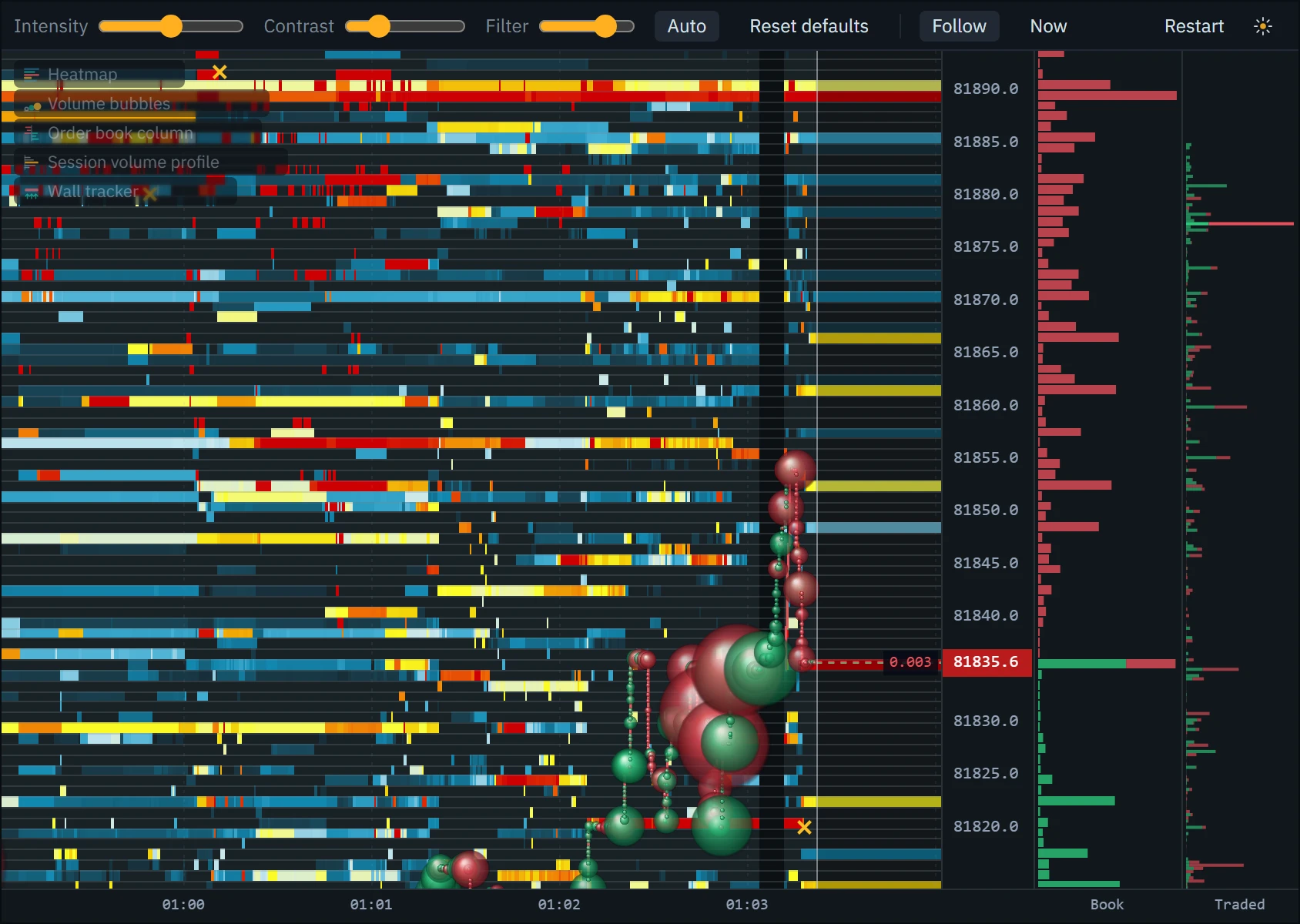
Everything on the chart, numbered. Open each mark on the picture below.
What the colours mean
The colours are relative to what is on screen. With Auto on, the heatmap ranks the resting sizes in view and spreads them over the ramp: the smaller 70% are drawn as background — Bookmap’s look, where ordinary orders stay dark so the large ones stand out — and the rest run from dark blue through white and yellow to orange and red. In practice around a sixth of what shows is orange to red. Red therefore means the largest orders in view, not a fixed number of coins; the order book column and the hover readout give the number.
Between colour steps the shade follows the logarithm of size, because resting size spans orders of magnitude: on a straight scale one large wall would turn every other level the same dark blue. A flat book with nothing remarkable on it stays blue rather than being stretched into false walls — the scale insists on a real difference in size before anything turns red. The colours re-balance when the book on screen has changed enough to move a colour step by more than a fifth, not on every update, so they do not flicker.
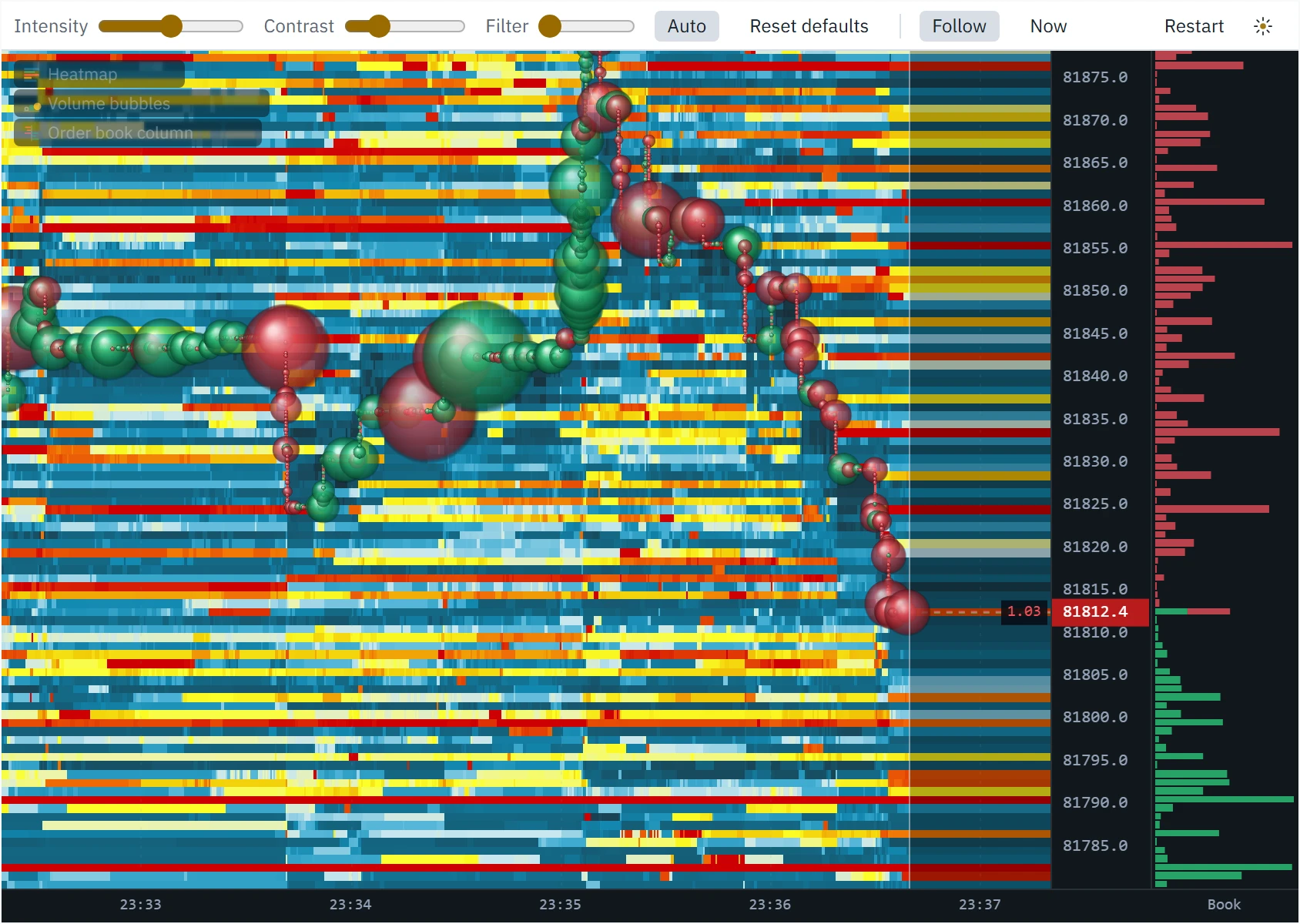
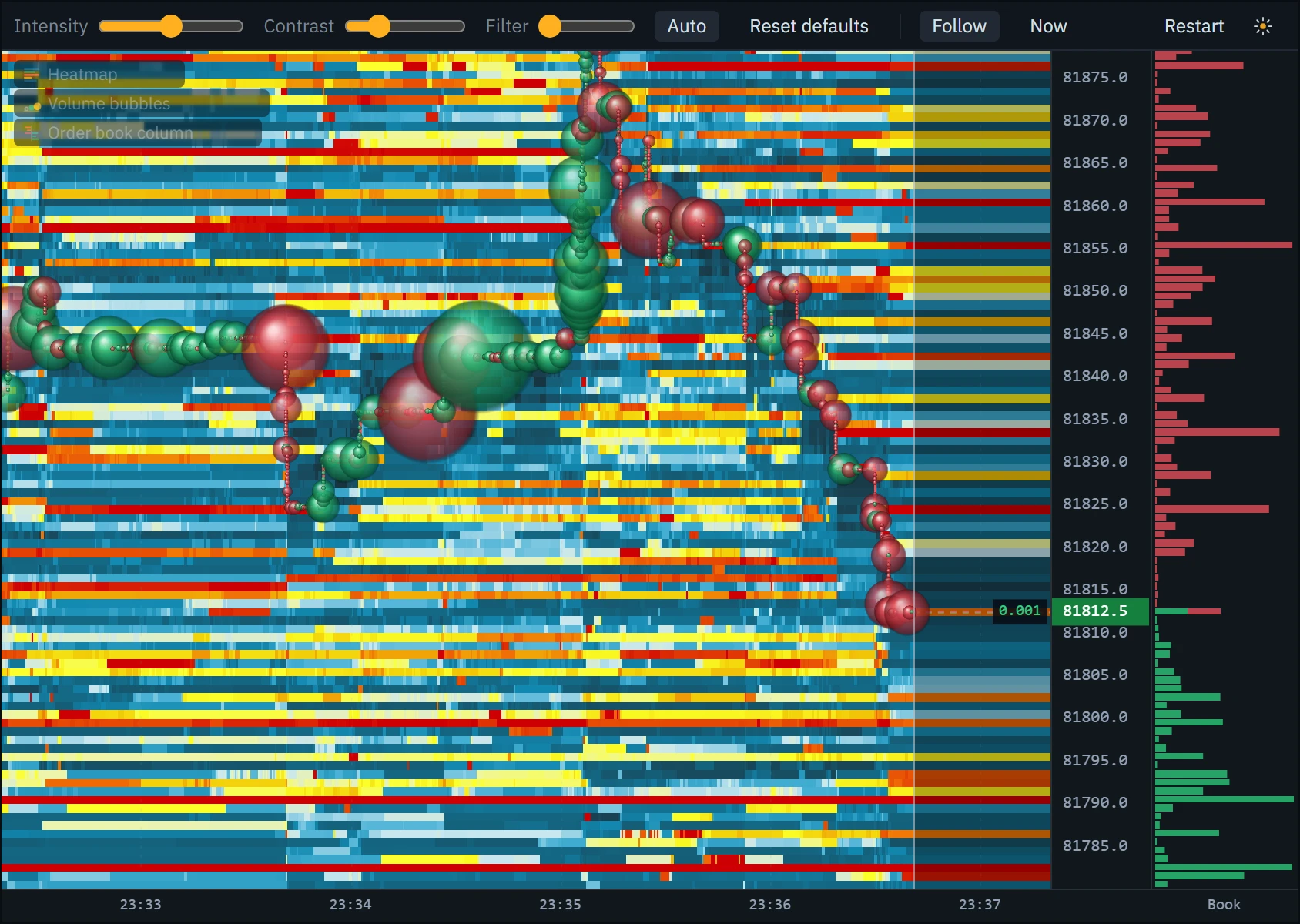
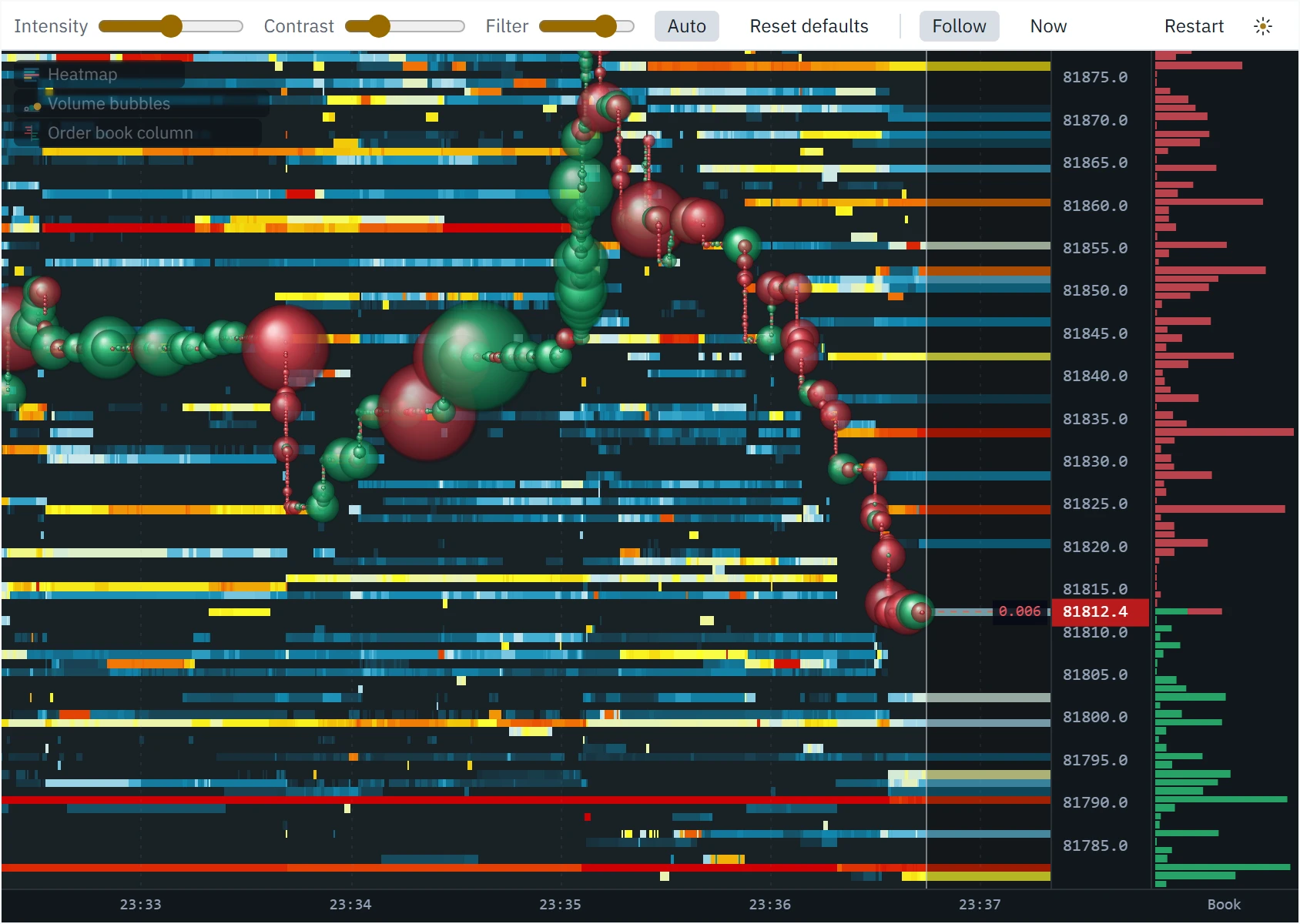
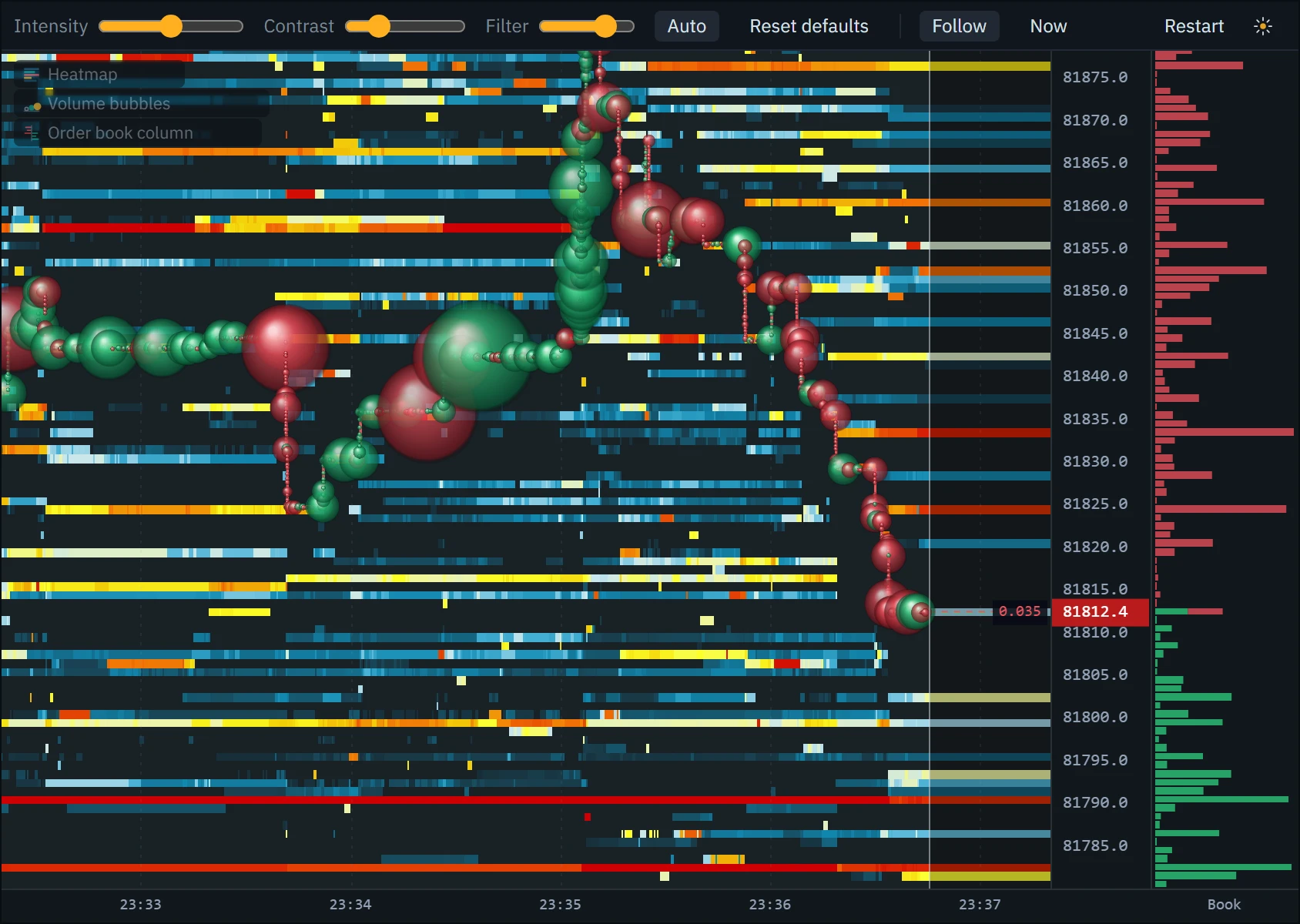
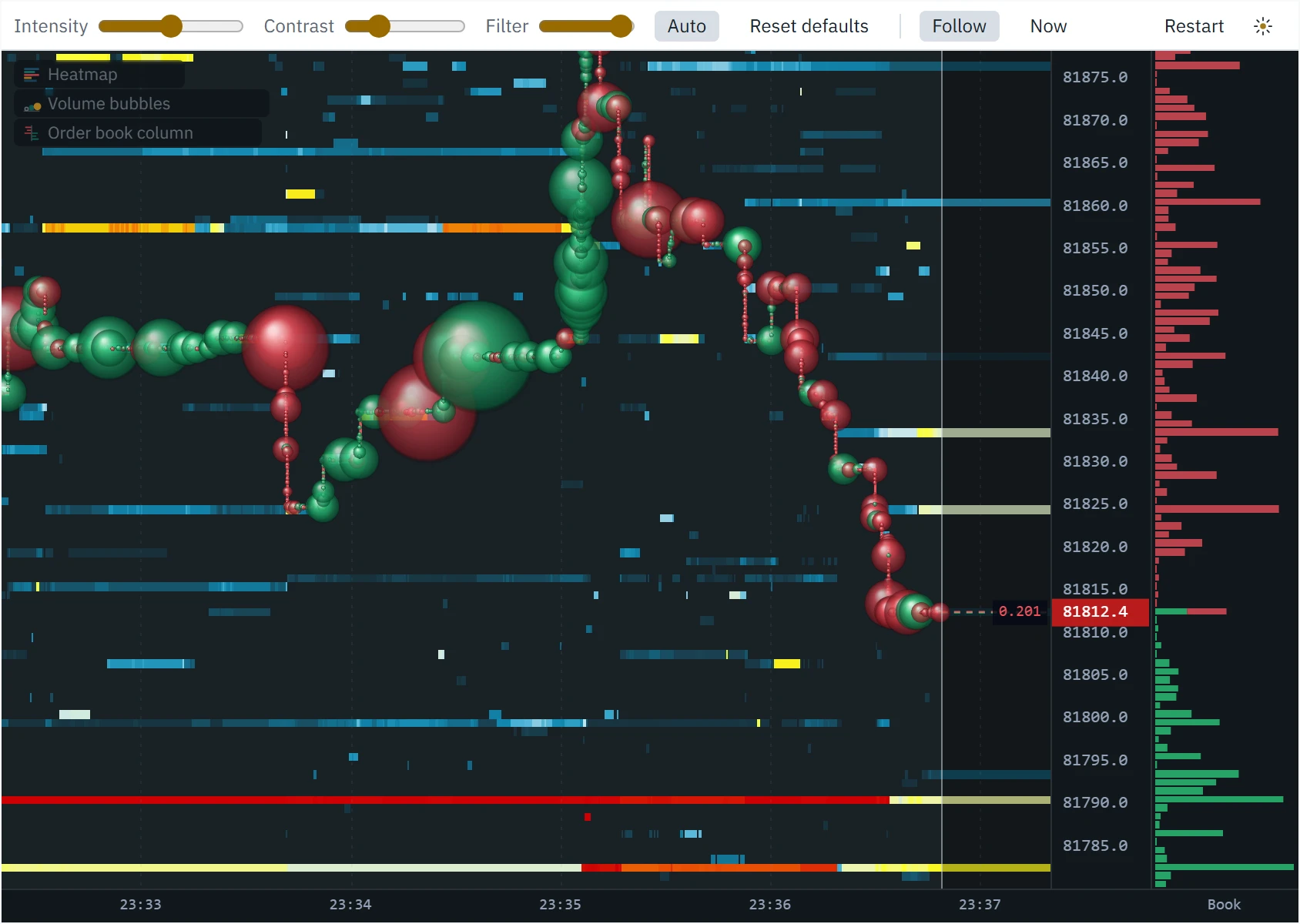
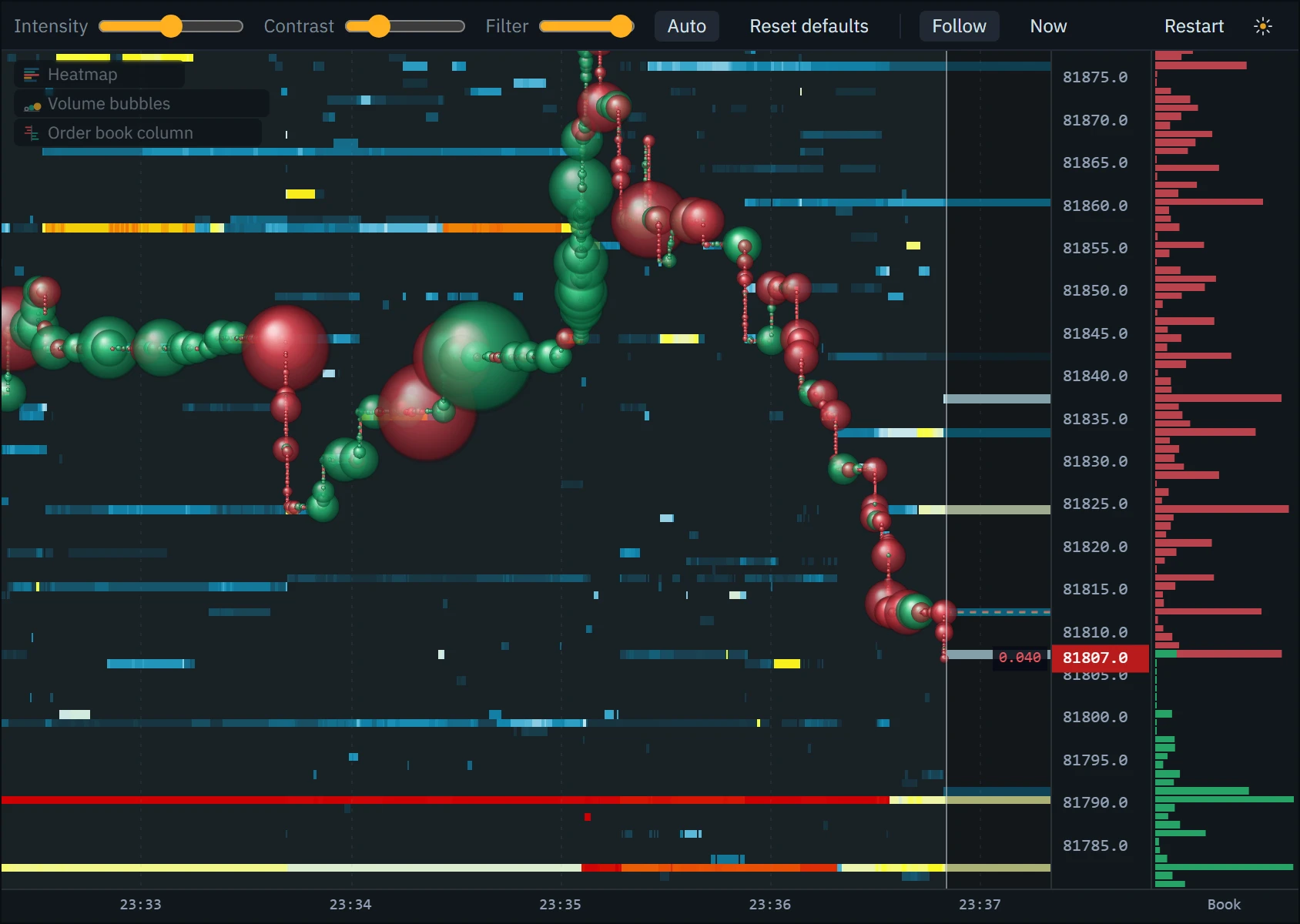
Three controls change the picture without changing the data. Filter is the share hidden as background. Intensity moves the colour steps: higher turns more of the book yellow and red, lower leaves only the largest orders hot (the + and − keys move it by five). Contrast bends the ramp: above 1 it lifts mid-sized orders, below 1 it leaves only the walls glowing. Turn Auto off to freeze the scale, so that a band keeps its colour while you scroll back and compare one stretch with another.
How to read a liquidity heatmap
The book is the easiest data on an exchange to fake: placing an order costs nothing, and most are cancelled. The heatmap’s advantage over a ladder is time — you can see how long a level has been there and what happened when price reached it. None of these is a signal on its own; each is a question to ask when price comes to a level you already care about.
A bright band, minutes long, and price arrives at it. Bubbles keep landing on the band — someone is trading into it — and the band stays bright, or dims and comes back. Price stalls. That is absorption you can watch: the size was real and it is being defended. The footprint should show heavy volume at that price with little progress.
- Look for
- Bubbles at the band, the band still there
- It fails when
- The band thins with every bubble
The wall tracker and the imbalance meter
Two of the heatmap’s own indicators turn the patterns above into marks. The wall tracker follows large resting orders and says what became of each one. A wall is a price holding at least 20 times the median resting size near the market — within half a percent of price, at most 2,000 rows each side — and sitting in the top 1% of those sizes, standing for three seconds or more — both tests, because near the spread most prices hold dust, which makes twenty times the median still small, and the top 1% of a thin book is not remarkable. Up to eight of the largest are followed at once, outlined from the moment they appeared and labelled with their size at the now-line.
When a wall falls below a quarter of its peak, it is gone, and the tracker reads the tape to say how. If trades at that price account for at least half of the size that vanished, it was eaten: a circle. Otherwise it was pulled — cancelled without trading: a yellow cross. Hover a mark for its size and price. The tracker says what happened to the size, never who placed it; no exchange publishes that.
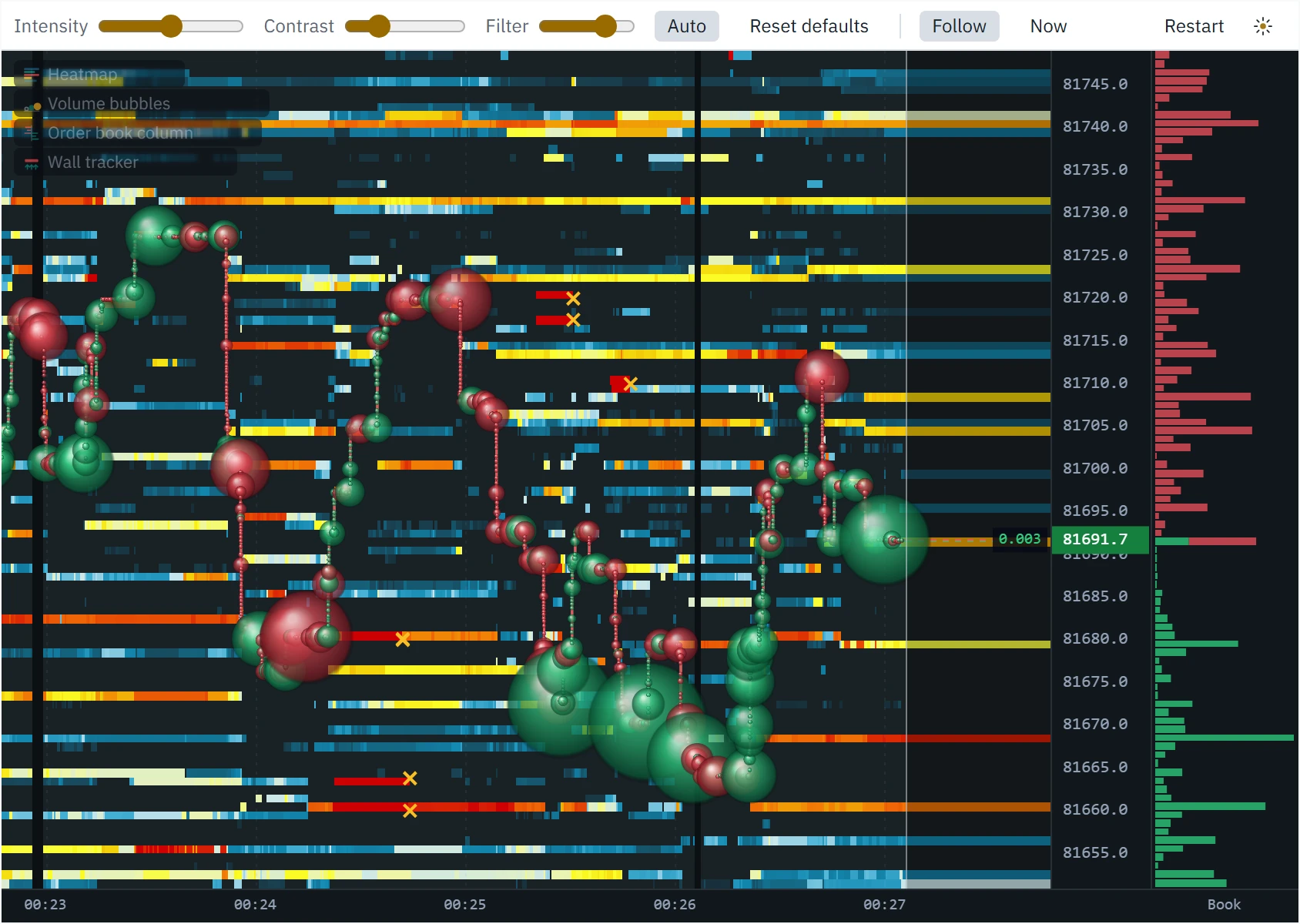
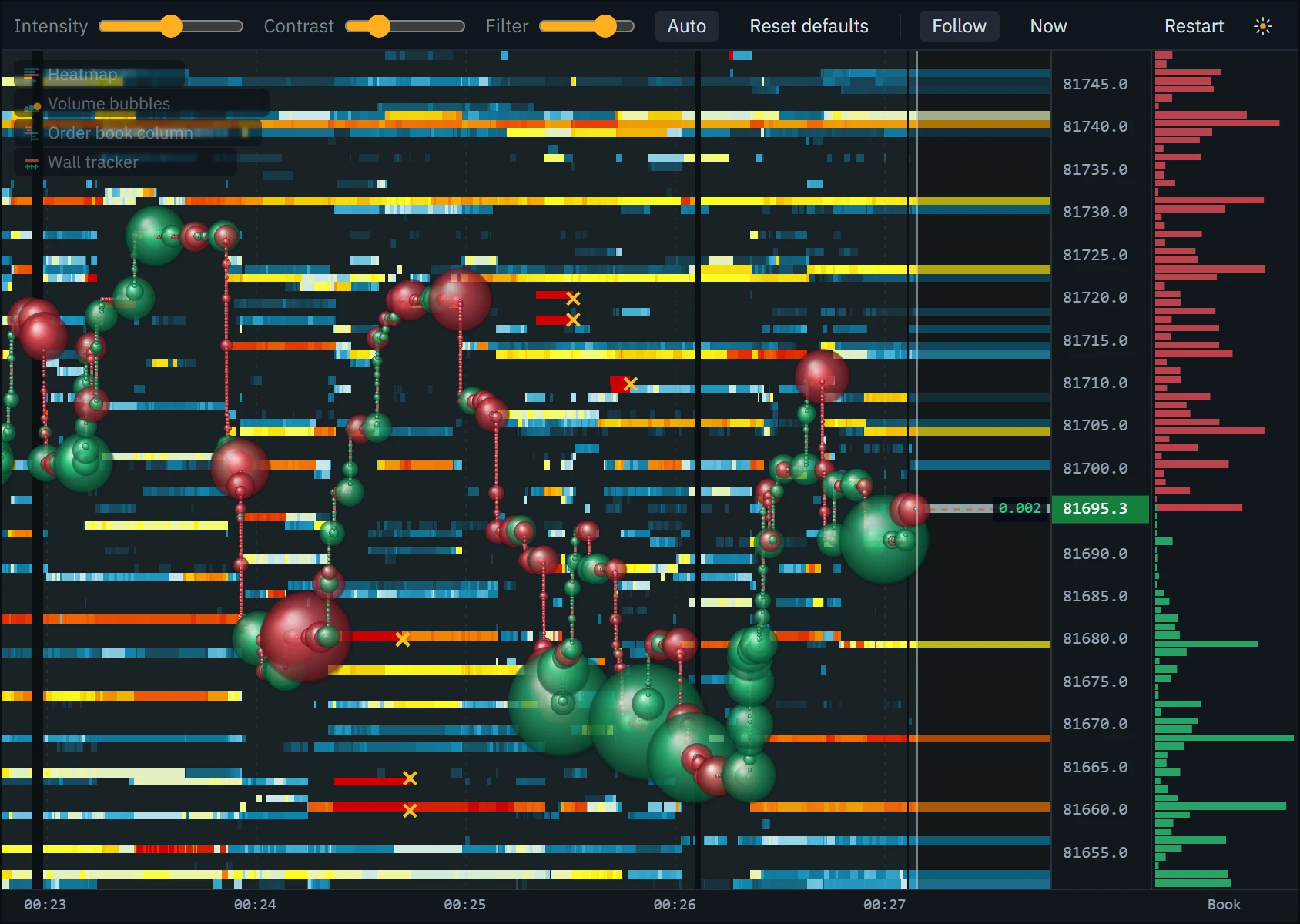
The imbalance meter sits at the top right of the field. Book compares the bids with the offers resting within 0.1% of price (at least ten rows each side) as a share from −100% to +100%: positive when more is bid. Volume compares aggressive buying with selling over the last 60 seconds of trades, the same way. One is what is waiting, the other what is happening; when they disagree — heavy bids resting, heavy selling trading — that disagreement is usually the interesting part.
Zoom in to single prices
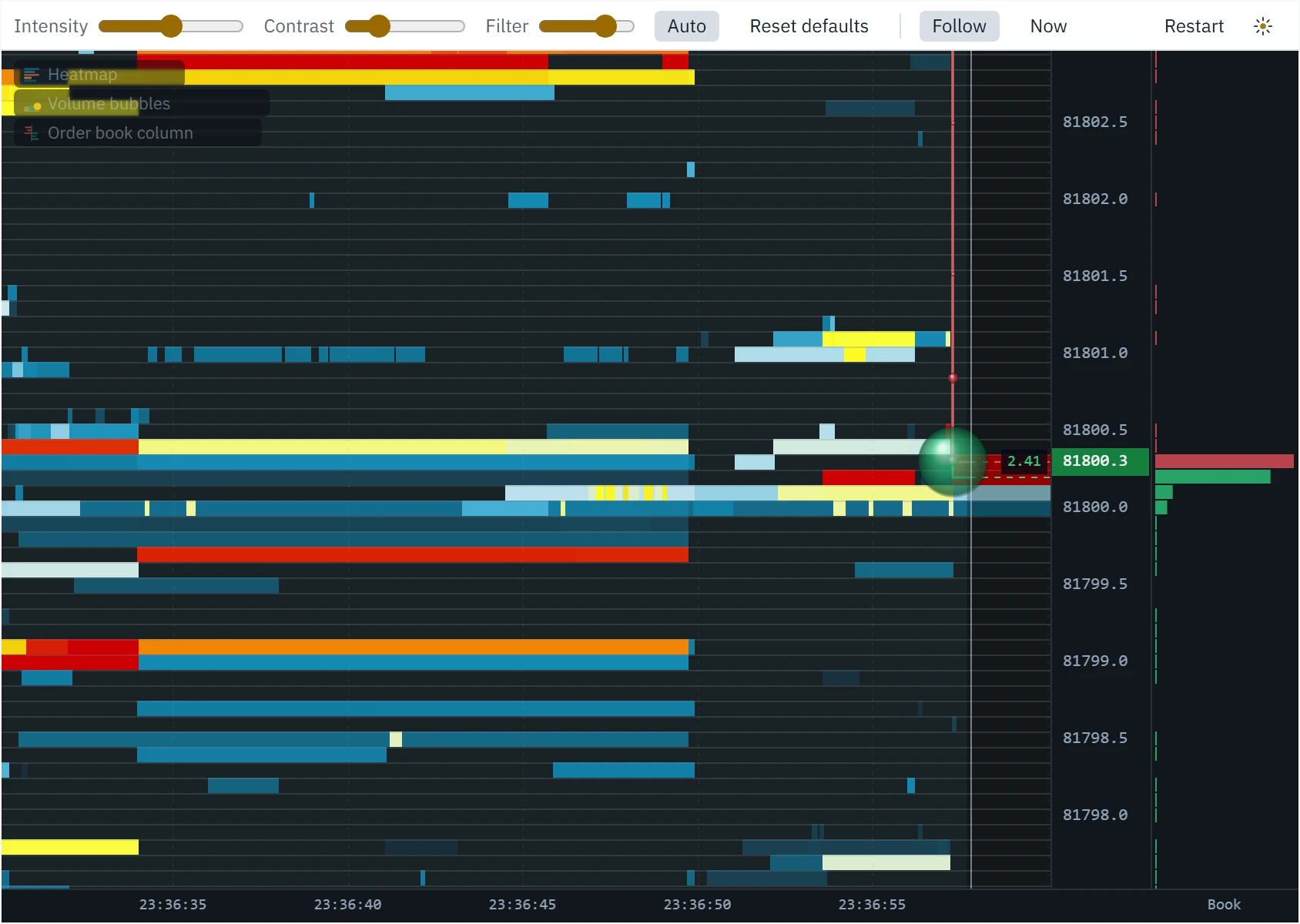
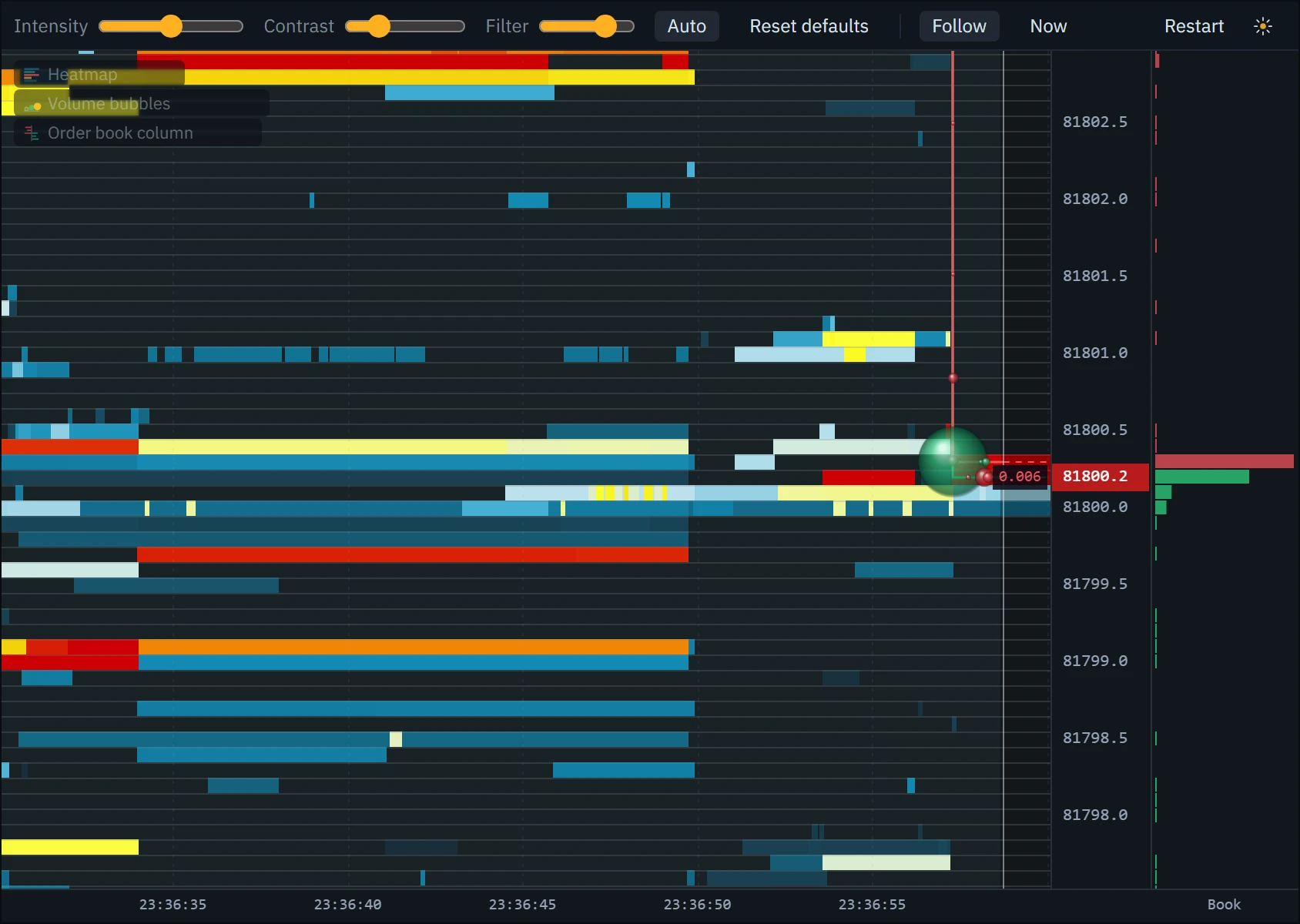
Zoomed in far enough, the bands come apart into single prices, one row per tick. Each level is drawn centred on its price, the green line runs through the best bid and the red line through the best offer, and each bubble sits on the price it traded at. This is where to look at a wall itself: how much is on the one price, whether the size beside it is moving, and which side of the spread the trades hit.
The heatmap’s indicators
The heatmap carries its own indicators, picked from Indicators in the toolbar while a heatmap is showing. They all start from zero when the recording starts — a heatmap has no history, so none of its indicators may either. The DOM ladder and the flow tape can sit beside it too.
| Indicator | What it shows |
|---|---|
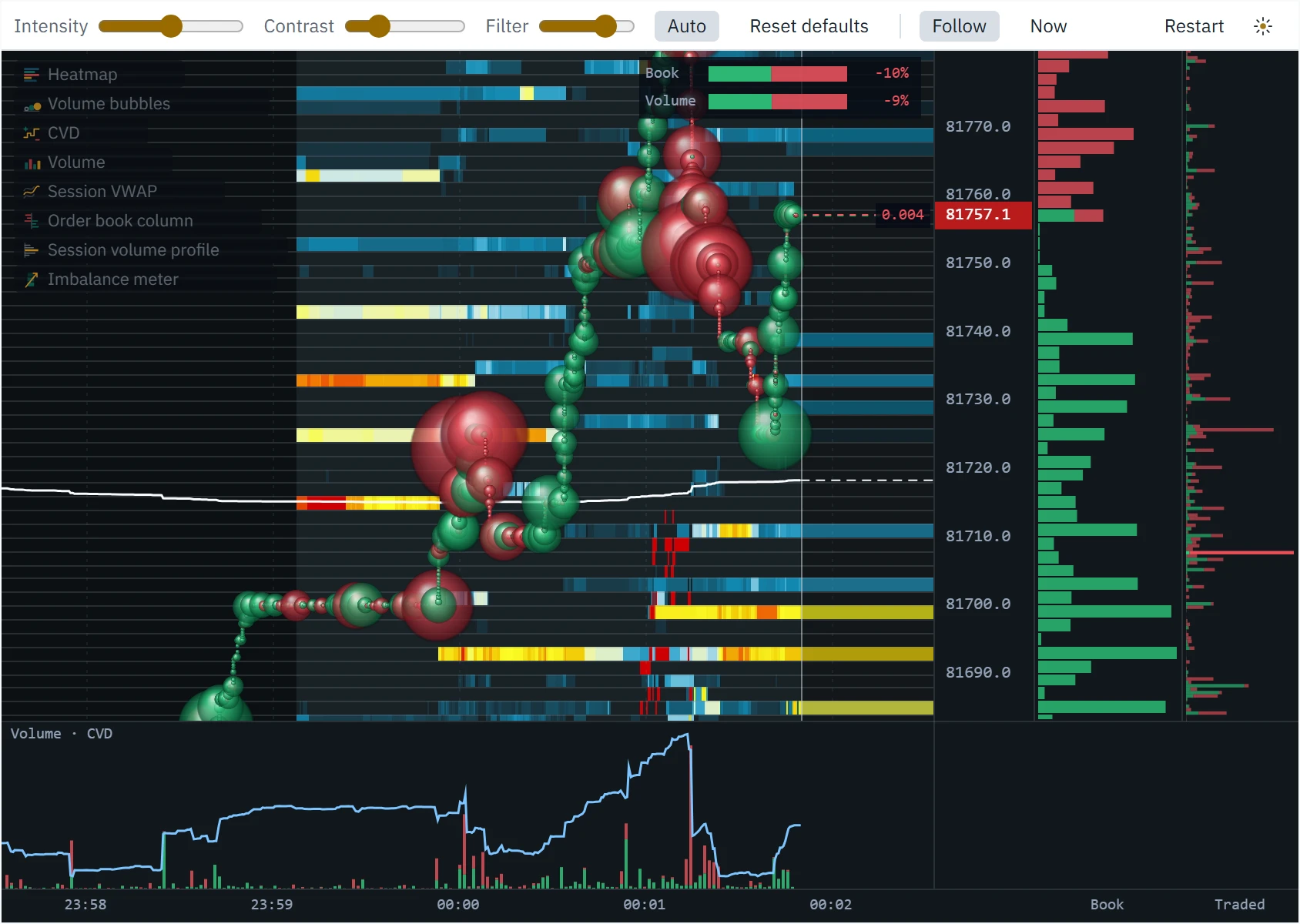
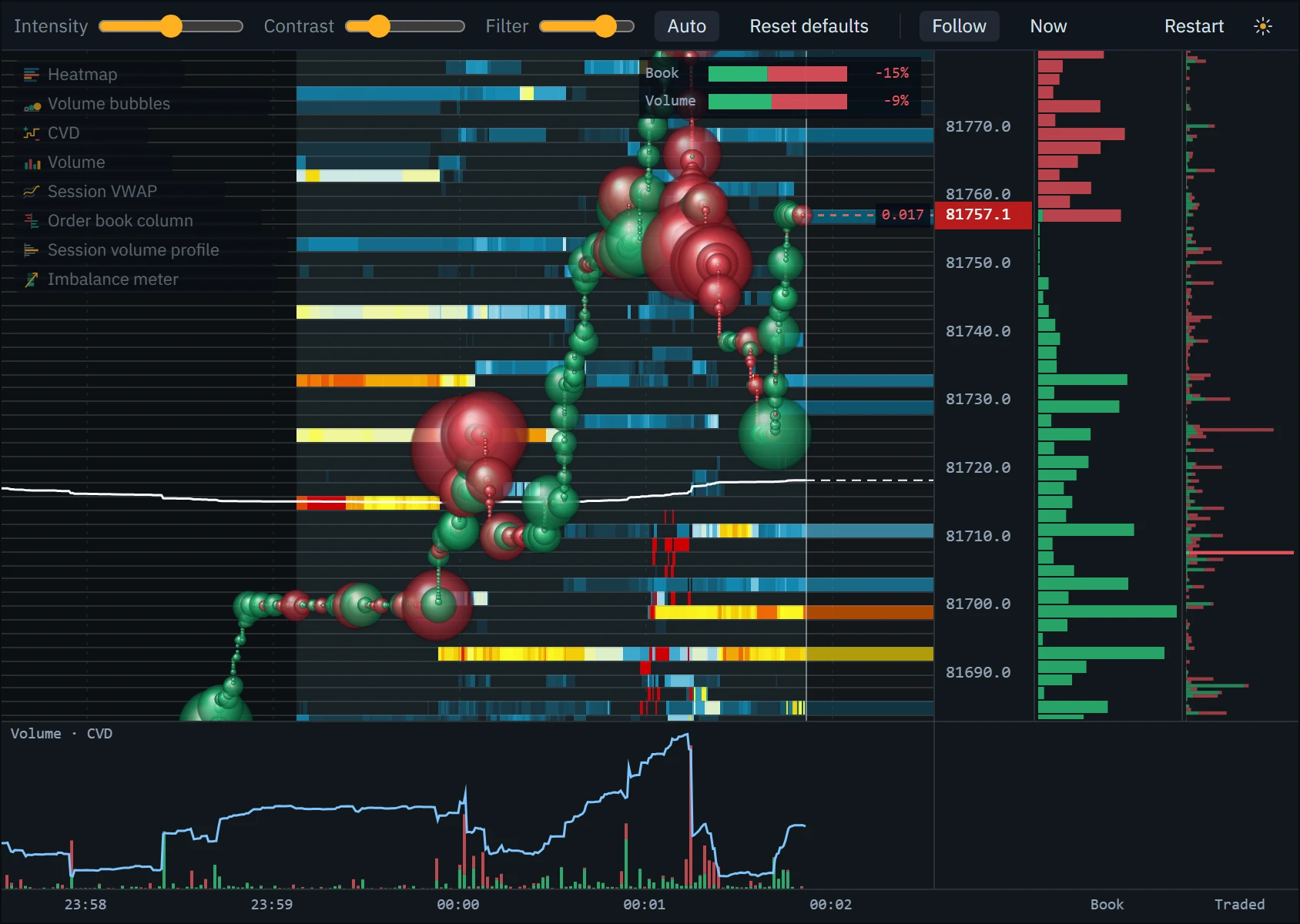
| Volume bubbles | Every trade, at its price and time: green for buyers lifting the offer, red for sellers hitting the bid. Same-side trades within 250 ms and three rows merge into one bubble, so a sweep reads as one order. Area grows with volume. On by default. |
| Order book column | The book now, one bar per band beside the price axis: bids green, offers red, both where a band straddles the spread. Sizes are written in once a band is tall enough. On by default. |
| Session volume profile | Volume traded at each price since the heatmap opened, buys and sells, the busiest price brightest. |
| Volume | Traded volume over time in a pane under the field, buys and sells stacked. |
| CVD | Cumulative volume delta — buying minus selling — since the heatmap opened, in the same pane on its own scale. |
| Session VWAP | The volume-weighted average price since the heatmap opened. |
| Wall tracker | Large resting orders outlined with their size; a cross where one was pulled, a circle where one was eaten. |
| Imbalance meter | Resting bids against offers near price, and buying against selling over the last minute. |
| Liquidations | Forced closes from the exchange’s liquidation feed, as diamonds: orange for longs, purple for shorts. Perpetuals only. |
Using it in your trading
The heatmap is a short-horizon tool. Resting orders describe the next seconds to minutes; anything far from price can be cancelled a hundred times before price gets there. Use it to time and to place, and to see whether a level that matters on the chart is actually defended.
Open it before you need it
It records only while it is open. Open it ten or twenty minutes before the level or the session you care about, so there is a picture of the book to read when price gets there.
Mark what persists
A band that has stayed bright for minutes is a level someone is committed to. A flash that comes and goes is not. Length matters more than colour.
Watch the approach
As price comes near a wall, does it stay, grow, or step away? A wall that steps back or vanishes is information too — the wall tracker marks the pulls.
Read the reaction in the bubbles
Large bubbles into a band that stays is absorption. A band shrinking under the bubbles is being eaten. A band gone with no bubbles at its price was pulled. Confirm on the footprint and with big trades.
Place stops by the book, not inside a gap
A stop beyond a wall that has held is behind something; a stop inside a thin patch is easy to reach. Re-read before you rely on it: the book moves.
Set it up in Klustra
Open the chart
Go to the chart and pick an exchange and instrument — for example the Binance BTCUSDT perpetual.
Choose Heatmap
Click Heatmap in the toolbar, beside Candles and Bid×Ask. The chart becomes a heatmap and starts recording, blank, from that moment; volume bubbles and the order book column are on.
Leave it open
The now-line walks from the left until it reaches its place near the right edge, and from then on the picture scrolls. Five minutes later the view is full.
Add what you want to see
Open Indicators for the volume and CVD pane, the session profile and VWAP, the wall tracker and the imbalance meter.
Tune the colours
Intensity, Contrast and Filter are on the heatmap’s own control strip; the gear opens every setting. Reset defaults puts them all back and returns to the live view.
Moving around
- Wheel over the field zooms time, from five seconds to two hours across. While following, now stays put.
- Ctrl- or Shift-wheel, or the wheel over the price axis, zooms price. Dragging the price axis or the time axis zooms them too.
- Drag the field to pan; panning stops following. Follow (or the F key) picks it up again, and Now returns to the standard view: following, five minutes, the standard price scale.
- Double-click the price axis for the standard price scale, centred on the book; double-click the time axis for five minutes. C re-centres price.
- Hover for a readout: the time to the millisecond, the bubble under the pointer, a wall mark, and what rested in that band at that moment — “BID 2.56 · ASK 4.01 @ 81236.0–81236.9” where a band holds both — or “Not in the book the exchange sends”.
- On a phone one finger pans and two fingers zoom time; the control strip wraps onto two rows.
- Restart clears the recording and starts again from now.
Every setting
| Setting | Default | Range | What it changes |
|---|---|---|---|
| Intensity | 50 | 0 to 100 | How hot the book looks. Higher turns more of it yellow and red; every 15 points halves or doubles each colour step’s distance from the floor. The + and − keys move it by five. |
| Contrast | 1 | 0.4 to 3 | A curve on the colour ramp: above 1 lifts mid-sized orders towards yellow, below 1 leaves only the largest glowing. |
| Auto intensity | On | On or off | Re-balances the colours to the book on screen as it changes. Off freezes the scale, so colours stay comparable while you scroll. |
| Hide the smaller orders (share of what is on screen) | 0.7 | 0 to 0.95 | The share of the resting sizes on screen drawn as background. 0.7 hides the smaller 70%; 0 colours every order. |
| Follow live | On | On or off | Whether a heatmap opens following now. Follow on the control strip changes the current view without changing this. |
| Free space right of now (share of width) | 0.15 | 0.05 to 0.4 | How much of the field is kept right of the now-line for the current book, once the recording fills the view. |
| Bubble size | 1 | 0.3 to 3 | Scales every bubble. A bubble’s area grows with its volume, measured against the recent 98th-percentile bubble. |
| Smallest trade shown (0 = every trade) | 0 | 0 or more | Bubbles below this size are not drawn. They still count in the volume, CVD, VWAP and profile. |
| Merge same-side trades within (ms) | 250 | 50 to 1000 | Same-side trades this close in time to a bubble’s first, and within three rows of its price, join it. |
| Wall = this many × the median order (and top 1%) | 20 | 3 to 100 | How large a resting order must be, against the median near price, before the wall tracker follows it. |
| Volume imbalance window (seconds) | 60 | 10 to 300 | How much of the tape the imbalance meter’s Volume reading covers. |
Common mistakes and limits
- Reading the colour as a size. Colours are relative to what is on screen: red is the largest in view, which on a quiet book can be small. The order book column and the hover readout give the number; turn Auto off to compare two stretches on one scale.
- Treating the book as a promise. A limit order is free to cancel and most are. A wall far from price costs nothing to show and is often gone before price arrives.
- Forgetting what is hidden. Iceberg and reserve orders show only a slice of themselves, so a modest band can absorb far more than it advertises. Bubbles landing on a level whose size never falls are the sign.
- Expecting history. The heatmap shows what it recorded since you opened it: changing the instrument, Restart or closing it starts again. It keeps up to two hours, less on the busiest books.
- Zooming out past the recording. It records the 4,000 price rows around the market — about ±$200 on the Bitcoin perpetual — and only as deep as the exchange’s feed reaches. Beyond that is drawn as unknown, not empty.
- Reading one venue as the market. Each exchange has its own book, and spot and perpetual books are separate. A wall on one says nothing about the others.
- Matching bubbles to the book at the deepest zoom. Binance publishes its book in 100 ms batches while trades are stamped to the millisecond, so zoomed to a few seconds a bubble can land a fraction of a second before the level it took shrinks.
Klustra and Bookmap
Bookmap made this kind of chart well known; it is desktop software with a web version, and its packages comparison lists what each plan includes. Klustra’s heatmap follows the same idea — it opens blank and records the book from that moment — and runs in the browser with nothing to install, on seven crypto exchanges: Binance, Bybit, OKX, Bitget, Gate.io, Hyperliquid and Coinbase (spot). The homepage compares Klustra with Bookmap, Exocharts and ATAS feature by feature, from their own published pages; for a TradingLite user there is Klustra vs TradingLite.
Free and Pro
The heatmap and its indicators are part of Pro, with the rest of the live book and tape tools. The chart, the footprint, delta and CVD stay free.
| Feature | Free | Pro |
|---|---|---|
| Book heatmap | Not included | Included |
| DOM ladder | Not included | Included |
| Big trades | Not included | Included |
| Flow tape | Not included | Included |
| Footprint chart (bid × ask) | Included | Included |
Questions
What is a liquidity heatmap?
A chart of the order book over time: price up the side, time along the bottom, and each price coloured by how much rested there at each moment. Large resting orders show as bright bands, and the trades are drawn over the book as bubbles.
What do the colours on a liquidity heatmap mean?
How much was resting at a price, compared with everything else on screen. In Klustra the smaller 70% of sizes are background, and the rest run from blue through white and yellow to red for the largest orders in view. A darker shade than the background means the exchange sent nothing for that price at that moment.
What is the difference between a liquidity heatmap and a liquidation heatmap?
A liquidity heatmap is the order book that really existed, as the exchange reported it. A liquidation heatmap is an estimate of where leveraged positions would be force-closed, modelled from open interest and assumed leverage. Klustra’s heatmap is the first kind, and it can mark real liquidations from the exchange’s own feed.
Why does the heatmap start empty?
Because exchanges do not publish past order books, only past trades. The book a heatmap shows has to be recorded, and Klustra records it from the moment you open the heatmap. The view fills in about five minutes.
How far back does the heatmap go?
To when you opened it, for up to two hours. All the heatmaps on screen share 96 MB of memory; on the Binance Bitcoin perpetual, the busiest book, that holds about an hour and fifty minutes.
Can a heatmap show spoofing?
It can show what spoofing looks like — size that appears, sits away from price and vanishes as price approaches without trading — and the wall tracker marks each such pull with a cross. It cannot show intent or who placed the order; a pulled order is not proof of manipulation.
Is Klustra’s heatmap like Bookmap?
It follows the same idea: a recording of the book from the moment it opens, coloured by size, with trades as bubbles. Klustra’s runs in the browser on seven crypto exchanges and adds its own wall tracker and imbalance meter.
Which exchanges and markets does it work on?
All seven Klustra connects to — Binance, Bybit, OKX, Bitget, Gate.io, Hyperliquid and Coinbase — spot and perpetual, with Coinbase spot only. How deep the book goes is each exchange’s decision.
Does it work on a phone?
Yes. The controls wrap onto two rows, one finger pans and two fingers zoom time. Keep the page in front: a phone can pause a page in the background, and the heatmap cannot record what it was not sent.
Is the heatmap free?
No, the heatmap is part of Pro, with the DOM ladder, big trades and the flow tape. The chart, the footprint, delta and CVD are free.
Related tools
See it on a live market.
Open a supported market and switch the tool on. The footprint, delta, CVD and imbalances are free, with no account.
Order flow shows what traded, not what will trade next. Nothing on this page is financial advice, and trading carries a real risk of loss.