Payment help
How to pay for Pro
You pay with USDT or USDC through NOWPayments, our payment partner. It usually takes about five minutes.
Choose your plan
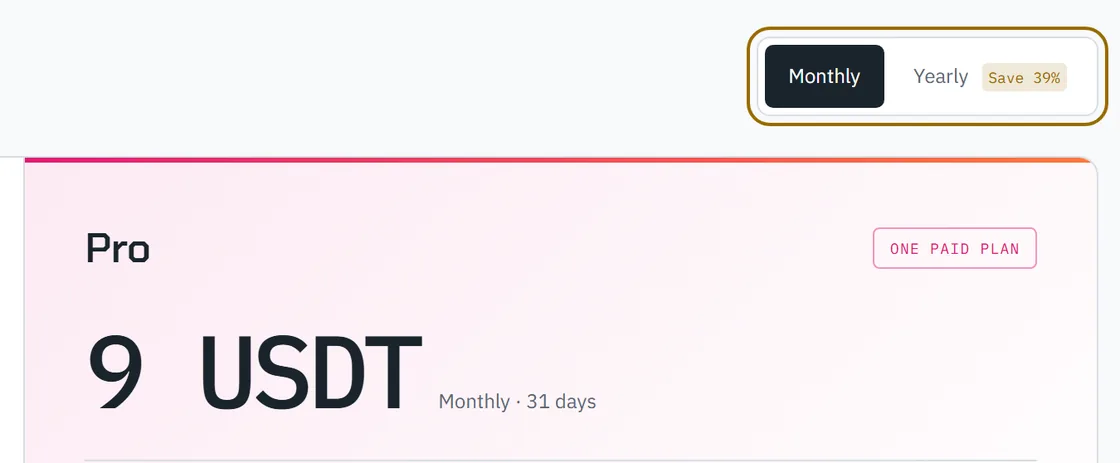
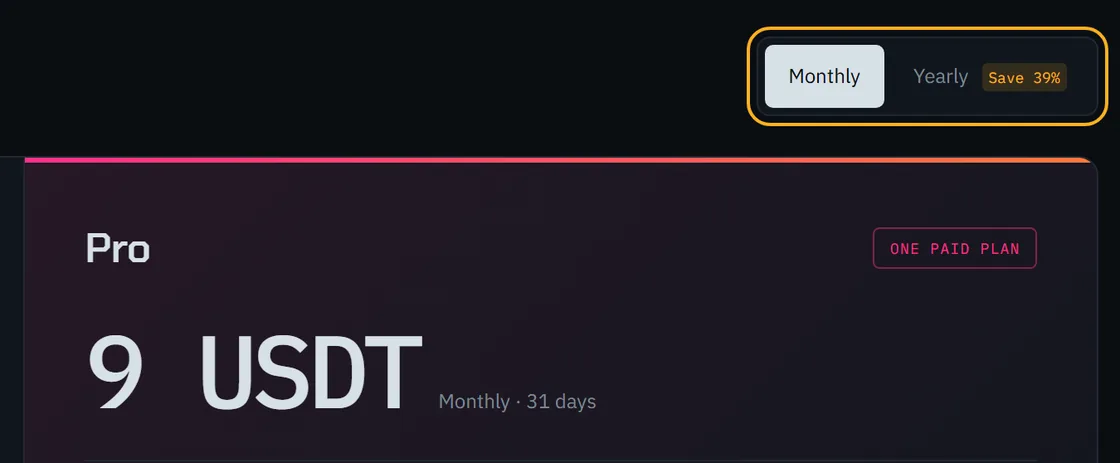
On the Pricing page, pick Monthly or Yearly. Got a discount code? Add it under the price.
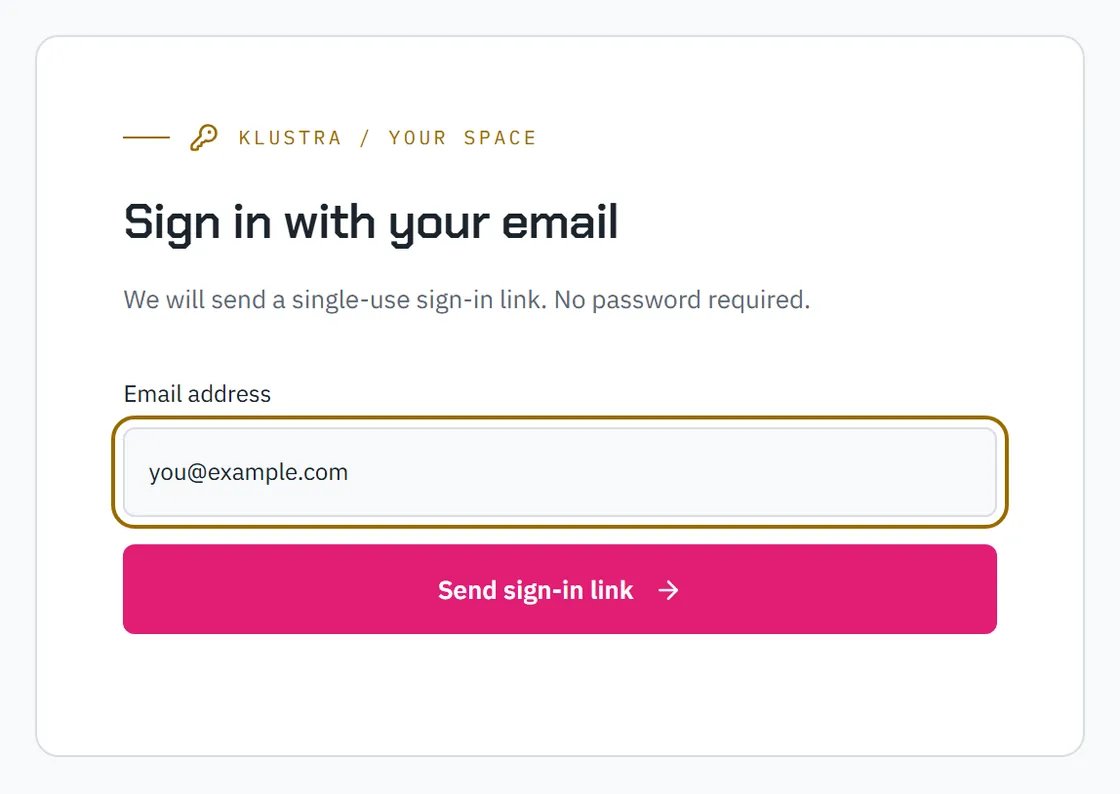
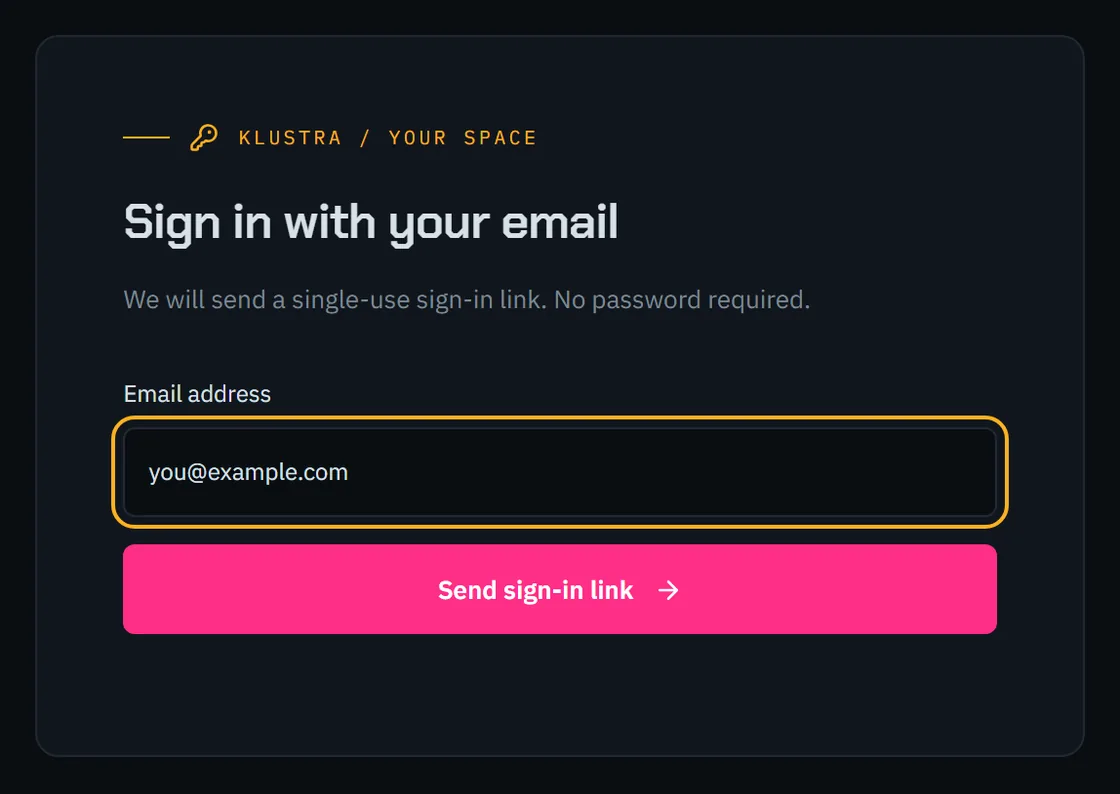
Sign in with your email
Select Sign in to continue and enter your email. We'll send you a sign-in link: open it and you're back at checkout. No password needed.
Already signed in? Skip this step.
Pick how you'll pay
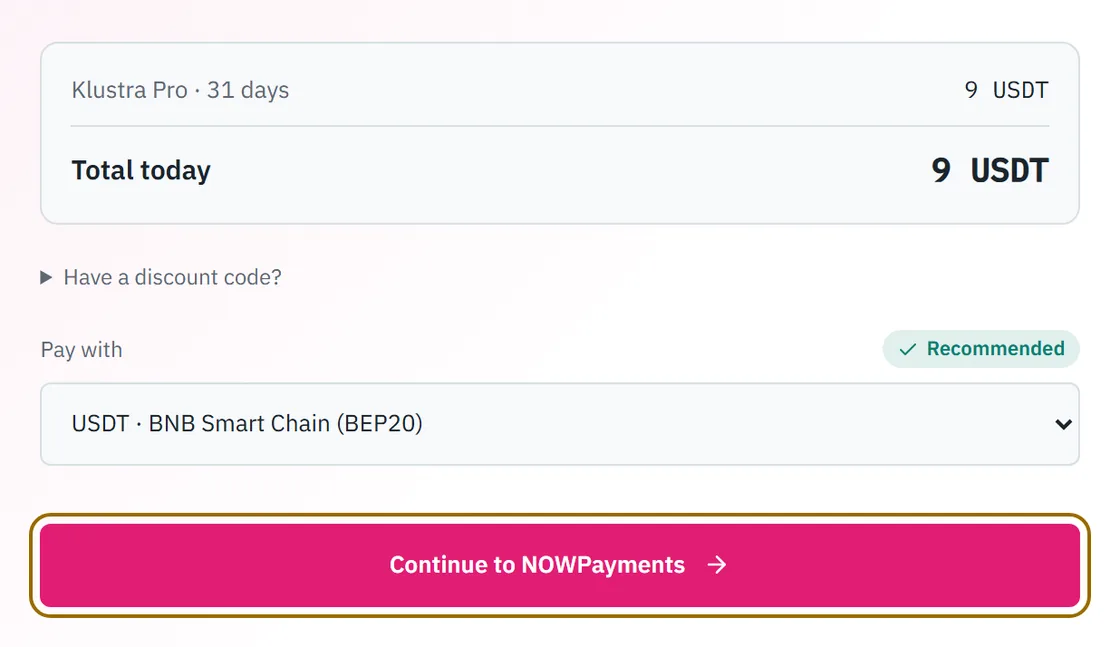
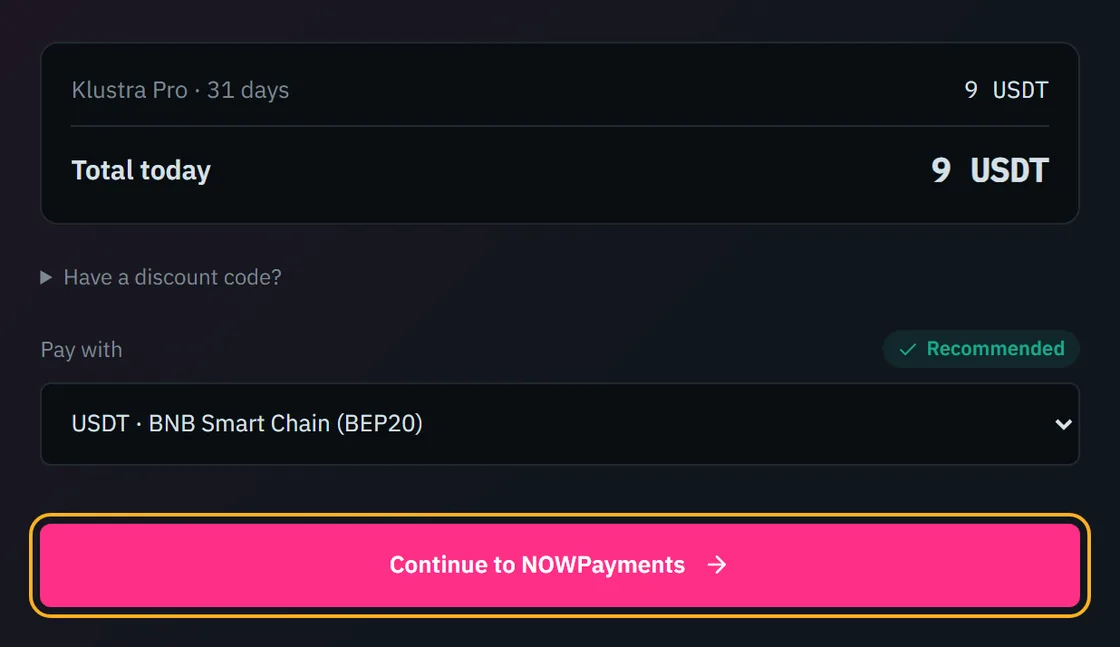
Under Pay with, choose your coin and the network you'll send it on. Pick one marked Recommended: they have the lowest fees.


Go to the payment page
Check the total, then select Continue to NOWPayments. You'll be taken to NOWPayments to pay.
Send the exact amount
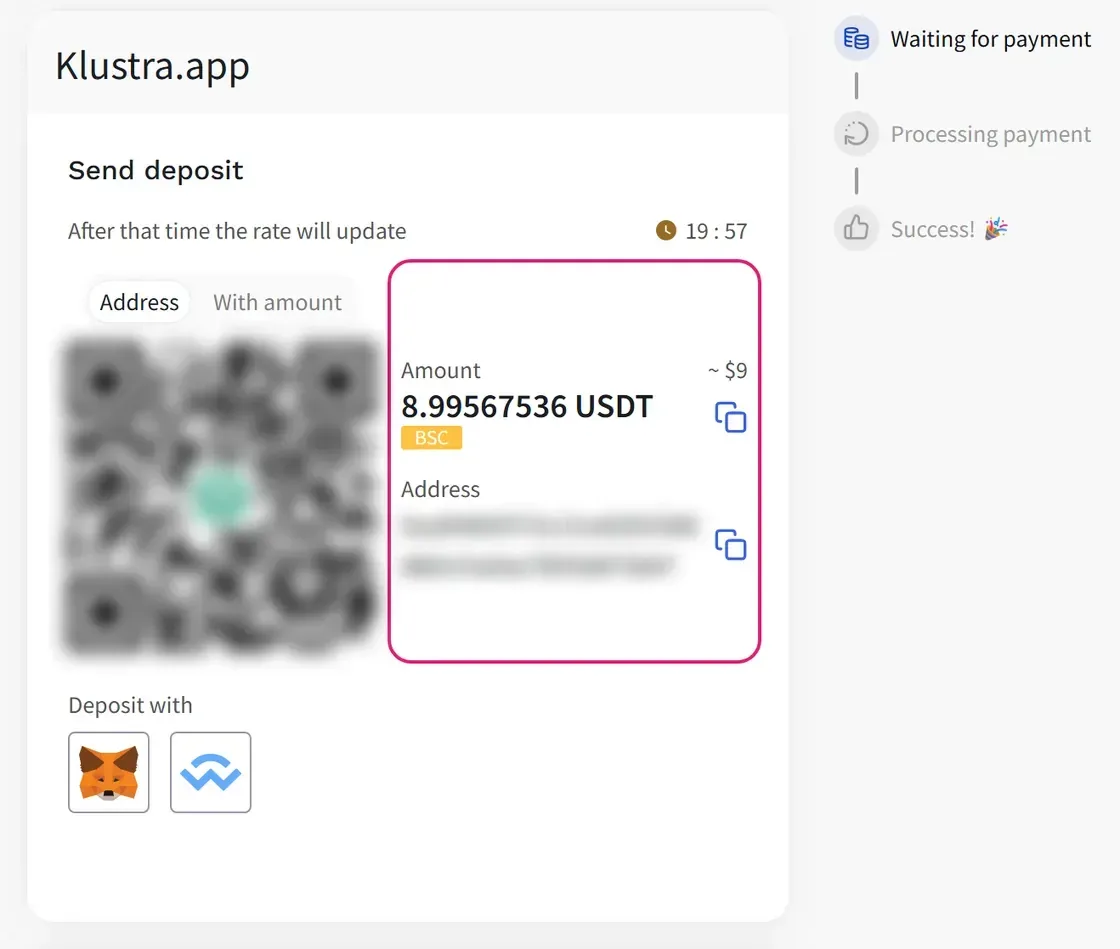
Scan the QR code with your wallet, or copy the amount and the address. Send exactly that amount, on the network shown next to it (for example, BSC).
Paying from an exchange? Add its withdrawal fee on top, so the full amount arrives. A short payment won't unlock Pro automatically.
Wait for confirmation
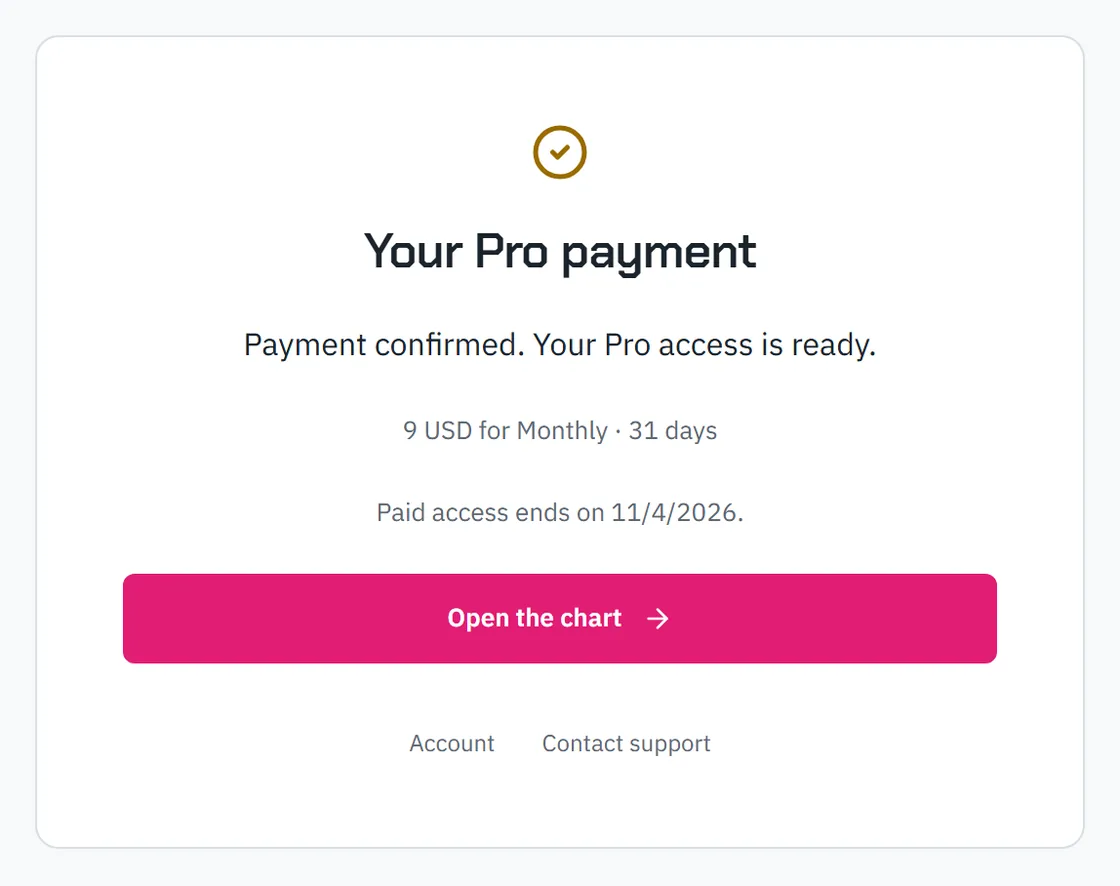
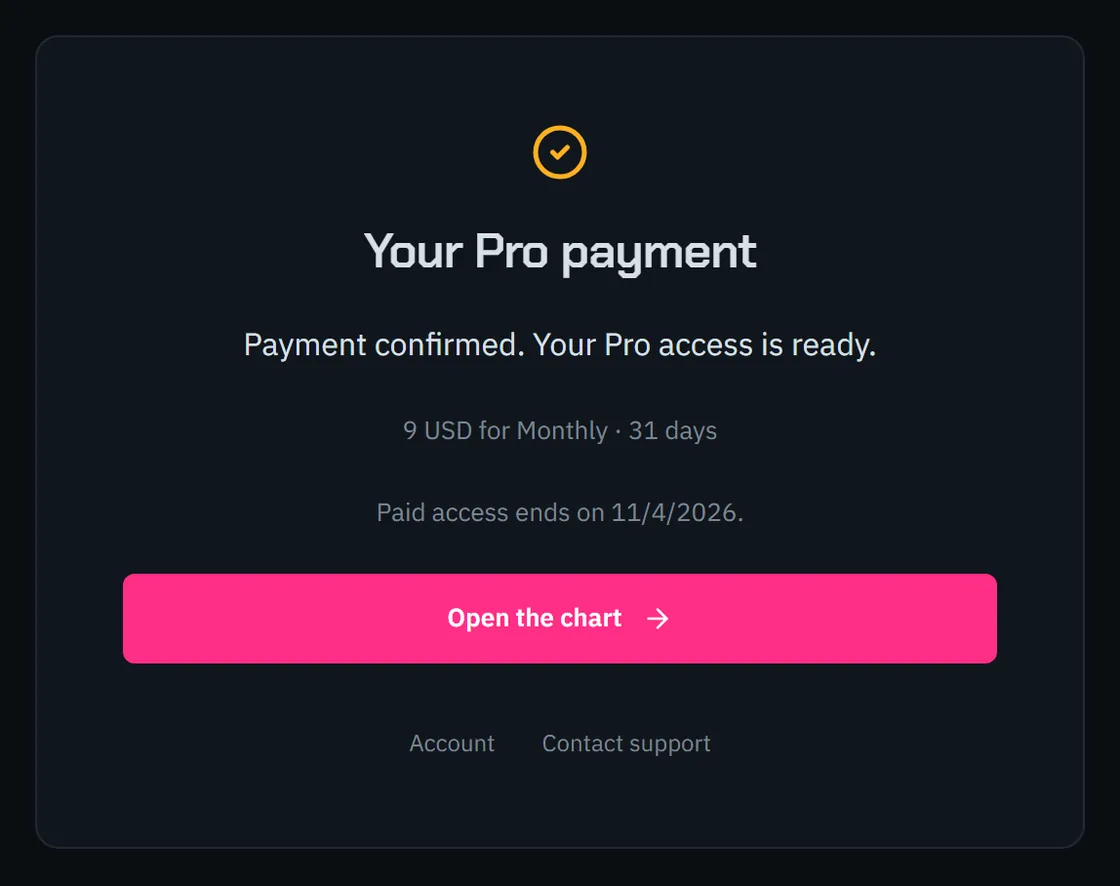
It usually takes a few minutes. Once the payment is confirmed, Pro turns on by itself. You can close the page while you wait.
Don't pay again while you wait.
Something not right?
The sign-in email didn't arrive
Check your spam or junk folder. Still nothing after a couple of minutes? Ask for a new link.
I paid, but it's still waiting
Some networks are slower when they're busy. Don't pay again: Pro turns on as soon as the payment is confirmed. You can check the status any time on your Account page.
I sent less than the amount
This usually happens when an exchange takes its fee out of the payment. Don't send another payment. Contact us with your payment ID and we'll help.
My payment expired or failed
Haven't sent anything yet? Just start again from the Pricing page. Already sent it? Don't pay again. Contact us with your payment ID.
It says I already have an unpaid invoice
Choose the same plan and network as before to reopen it, or open it from your Account page.
I sent it on the wrong network
Don't send it again. Contact us right away with your payment ID and the transaction ID (TxID).
Still stuck?
Email us at info@klustra.app with your payment ID. You'll find it at the top of the NOWPayments page.